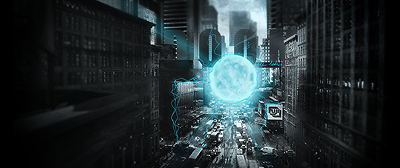
rate my sig

Digital art design, renderings, signatures and anything art related. Upload pictures of your newest work or ask for feedback. Post graphics requests or discuss art in general.
Post Reply
User avatar
woutR
Elite Member
Posts: 5573
Joined: Wed Feb 08, 2006 5:20 pm
Quick Reply: Yes
Location: Netherlands
Contact:

rate my sig

Post by woutR »

I redid the first I ever made in PS with some simple effects. I'm only a noob in PS and I don't even know how to make renders and stuff :oops: I don't know how to get images in another image and all that stuff, so I just used the basic tools.

Image

How did I do? I think the quality went *poof* after I saved it in JPEG :(
Constructive comments please :)

EDIT: I just saw my border sucks balls, anyone know how I can make a 'transparent' border, the ones used in those sigs where a weapon sticks out of the sig but doesn't get a white square around it? Is it hard?
Last edited by woutR on Tue May 22, 2007 3:16 pm, edited 1 time in total.
Image

<< :giveup:>>

User avatar
0l3n
Elite Member
Posts: 5184
Joined: Fri Jun 16, 2006 1:45 pm
Quick Reply: Yes
Location: Artists Corner

Post by 0l3n »

The first one was better imo.
Image
Image

User avatar
woutR
Elite Member
Posts: 5573
Joined: Wed Feb 08, 2006 5:20 pm
Quick Reply: Yes
Location: Netherlands
Contact:

Post by woutR »

but wasn't that one too simple?
For the people who didn't saw that one, it was this

Image

I thought that one was too simple
Image

<< :giveup:>>

User avatar
0l3n
Elite Member
Posts: 5184
Joined: Fri Jun 16, 2006 1:45 pm
Quick Reply: Yes
Location: Artists Corner

Post by 0l3n »

Simple isnt always bad.
Image
Image

cin

Post by cin »

woutR wrote:but wasn't that one too simple?
For the people who didn't saw that one, it was this

Image

I thought that one was too simple


border around it and done ;)

i also like this one better than your new one..
try put a border around this and cutting a bit off the height so you get
a more euh.. "rechthoekige" sig :P i know you understand that one xD

simple sigs ftw :D

User avatar
MastaChiefX
Senior Member
Posts: 4526
Joined: Fri Nov 03, 2006 1:18 am
Quick Reply: Yes
Location: Life.

Post by MastaChiefX »

Simple > busy.

And to have the "invisible" part, you need to have the image in gif format.
Image
^Thanks 0l3n!
Gone. Never really gone, but never really here.
"If Pac-Man had affected us as kids, we’d all be running around in dark rooms, munching pills and listening to repetitive electronic music"

cin

Post by cin »

MastaChiefX wrote:Simple > busy.

And to have the "invisible" part, you need to have the image in gif format.


thats it.

and to make it transparent in photoshop, you can do several things.

for example, click on the eye next to the background layer. background
is white unless you choose differently. click on the eye = no background
= transparent.

there are probably more ways but i use these 2 the most.

you can "layer from background" (rightclick the background layer and
do that), and in that layer delete what you dont want.


tip: i normally have squarish sigs so i select the square of my sig, press
ctrl-shift-i (select inverse) and then delete. :)

User avatar
MastaChiefX
Senior Member
Posts: 4526
Joined: Fri Nov 03, 2006 1:18 am
Quick Reply: Yes
Location: Life.

Post by MastaChiefX »

cin wrote:
MastaChiefX wrote:Simple > busy.

And to have the "invisible" part, you need to have the image in gif format.


thats it.

and to make it transparent in photoshop, you can do several things.

for example, click on the eye next to the background layer. background
is white unless you choose differently. click on the eye = no background
= transparent.

there are probably more ways but i use these 2 the most.

you can "layer from background" (rightclick the background layer and
do that), and in that layer delete what you dont want.


tip: i normally have squarish sigs so i select the square of my sig, press
ctrl-shift-i (select inverse) and then delete. :)


I thought that the eye just hid the layer from you, but it is still there when you save it? :?
Image
^Thanks 0l3n!
Gone. Never really gone, but never really here.
"If Pac-Man had affected us as kids, we’d all be running around in dark rooms, munching pills and listening to repetitive electronic music"

cin

Post by cin »

MastaChiefX wrote:
cin wrote:
MastaChiefX wrote:Simple > busy.

And to have the "invisible" part, you need to have the image in gif format.


thats it.

and to make it transparent in photoshop, you can do several things.

for example, click on the eye next to the background layer. background
is white unless you choose differently. click on the eye = no background
= transparent.

there are probably more ways but i use these 2 the most.

you can "layer from background" (rightclick the background layer and
do that), and in that layer delete what you dont want.


tip: i normally have squarish sigs so i select the square of my sig, press
ctrl-shift-i (select inverse) and then delete. :)


I thought that the eye just hid the layer from you, but it is still there when you save it? :?


it hides the layer and flattens them as soon as you save it as a gif/jpg/whatever.
it saves what it sees so if you only save it as .gif, you will lose your layer.
always save a .psd with the layers and save the transparent pic as a .gif.
when you save it as gif or whatever, it always saves what it sees and flattens
the layers -> you will lose the layers. therefor always save both the psd and
a gif :)

Post Reply

Return to “Artists Corner”