Basic sprite animation GIF tut w/o imageready
Posted: Mon Jun 11, 2007 12:41 pm
This short tut is for making sprite animations which is very simple. This is for those who don't have imageready or complicated for them, etc. Now lets begin.
First you must download UnFreez 2.1 click here to download it (uses GIF files).
Now that you have got this lets get some sprite sheets. Sprite Database is the best place to get some sprite sheets. Choose a console and game and then save as.. any character of your disire. For this tut, I'll use Hinata from Naruto: Saikyou Ninja Daikesshu 4 on the DS.
Open your sprite sheet on Paint or Photoshop; I recommend you to use photoshop because you can make your animations straight and making your background transparent. Since this tutorial is basic, I'll use Paint.
I'll use Hinata's stance sprites:
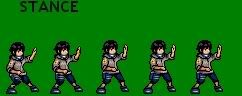

use the tool above and outline the first sprite like this:

copy with ctrl+c then open a new paint document then paste. Save as the sprite and save it as a GIF; name your file numbered like 1, 2, 3 etc. to make it more easier and not confusing like this:
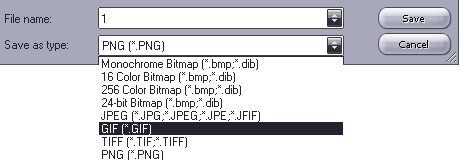
a warning would come up and say it will have a loss of color in this format, but remember, this tut is basic.
Keep doing this procedure with each of the sprites. Now that you have copyied, pasted and saved them as GIFs it's time to use the animation.
Now open UnFreez which looks like this:
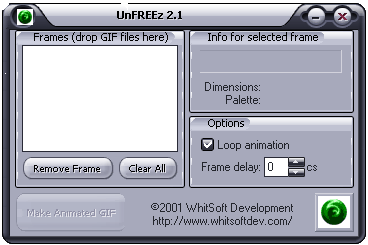
Open the folder where you saved your GIFs at and simply drag and drop the sprites to the blank white box. Choose your frame delay which means how slow you want them to move. The lowest goes fast and highest goes slow. Do 8-13 if your doing short animations or 13-16 if your doing long animations. I'll do 13 on this one:

now click "Make Animated GIF" then save it then there it is. This is how it ended up on my one:

not really the best because its on PAINT and the bad problem about paint is that you can see where you're pasting the sprites and cant do the sizing perfectly but if you really want to do it perfectly, use "photoshop" this is just a tut u morons!
If you want to make your background transparant (without photoshop) go to GIF works(this is abit like photoshop but on the net). Click on File>open file, now where it says Method 2: Upload a GIF from your hard drive, browse for your animation that you have just done then click upload image. Now it would be something like photoshop:
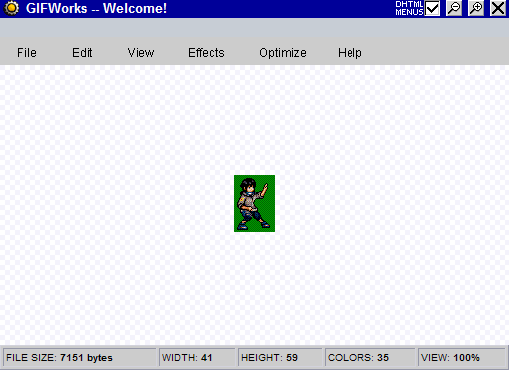
(sprite is meant to move but i used PrtScn)
Click on Edit>Add Transparency. Now a small window will come up saying:

Just simply click the color you want to make transparent (in motion). Now that the background is transparant you can save picture as and then its finished! If you would make animations with photoshop, you wouldnt use GIFworks because you could just use the wand tool to transparify it. This is how I would end up in photoshop(i couldnt show u how i ended up with paint because something went wrong with my transparfy...):

I hope you know how to make animations w/o imageready and such. Thanks to Sheng Long who ripped these sprite for this tutorial and thanks who created these other random things...i hope you learned something..this is for the people who didnt know how to make animations OK?!? im out
First you must download UnFreez 2.1 click here to download it (uses GIF files).
Now that you have got this lets get some sprite sheets. Sprite Database is the best place to get some sprite sheets. Choose a console and game and then save as.. any character of your disire. For this tut, I'll use Hinata from Naruto: Saikyou Ninja Daikesshu 4 on the DS.
Open your sprite sheet on Paint or Photoshop; I recommend you to use photoshop because you can make your animations straight and making your background transparent. Since this tutorial is basic, I'll use Paint.
I'll use Hinata's stance sprites:
use the tool above and outline the first sprite like this:
copy with ctrl+c then open a new paint document then paste. Save as the sprite and save it as a GIF; name your file numbered like 1, 2, 3 etc. to make it more easier and not confusing like this:
a warning would come up and say it will have a loss of color in this format, but remember, this tut is basic.
Keep doing this procedure with each of the sprites. Now that you have copyied, pasted and saved them as GIFs it's time to use the animation.
Now open UnFreez which looks like this:
Open the folder where you saved your GIFs at and simply drag and drop the sprites to the blank white box. Choose your frame delay which means how slow you want them to move. The lowest goes fast and highest goes slow. Do 8-13 if your doing short animations or 13-16 if your doing long animations. I'll do 13 on this one:
now click "Make Animated GIF" then save it then there it is. This is how it ended up on my one:
not really the best because its on PAINT and the bad problem about paint is that you can see where you're pasting the sprites and cant do the sizing perfectly but if you really want to do it perfectly, use "photoshop" this is just a tut u morons!
If you want to make your background transparant (without photoshop) go to GIF works(this is abit like photoshop but on the net). Click on File>open file, now where it says Method 2: Upload a GIF from your hard drive, browse for your animation that you have just done then click upload image. Now it would be something like photoshop:
(sprite is meant to move but i used PrtScn)
Click on Edit>Add Transparency. Now a small window will come up saying:
Just simply click the color you want to make transparent (in motion). Now that the background is transparant you can save picture as and then its finished! If you would make animations with photoshop, you wouldnt use GIFworks because you could just use the wand tool to transparify it. This is how I would end up in photoshop(i couldnt show u how i ended up with paint because something went wrong with my transparfy...):
I hope you know how to make animations w/o imageready and such. Thanks to Sheng Long who ripped these sprite for this tutorial and thanks who created these other random things...i hope you learned something..this is for the people who didnt know how to make animations OK?!? im out

